
Speech providers
Live Hub has a range of speech providers pre-deployed. Select one when you create a bot connection, and it works immediately, with nothing to add here. See Speech-to-text services and Text-to-speech services. Even then, the vendor pages below remain useful: they document each vendor's advanced configuration parameters, which apply equally to the pre-deployed providers.
The rest of this section covers bringing your own speech provider: you hold the account with the vendor, you supply the key, and Live Hub uses it. Add your own provider for any of the following reasons:
- You already have a contract with the vendor, and want the usage on your bill at your rates.
- You run a private deployment of the service, on your own endpoint.
- You need a vendor, model, or region that Live Hub has not pre-deployed.
- Your data must not pass through anyone else's subscription.
Once added, a provider appears alongside the pre-deployed ones when you select a speech provider on a bot connection. See Manage bot connections.
Speech providers are an Essential plan feature. Trial accounts cannot add them; adding credit to the account balance upgrades it. See Account plans.
Add a speech provider
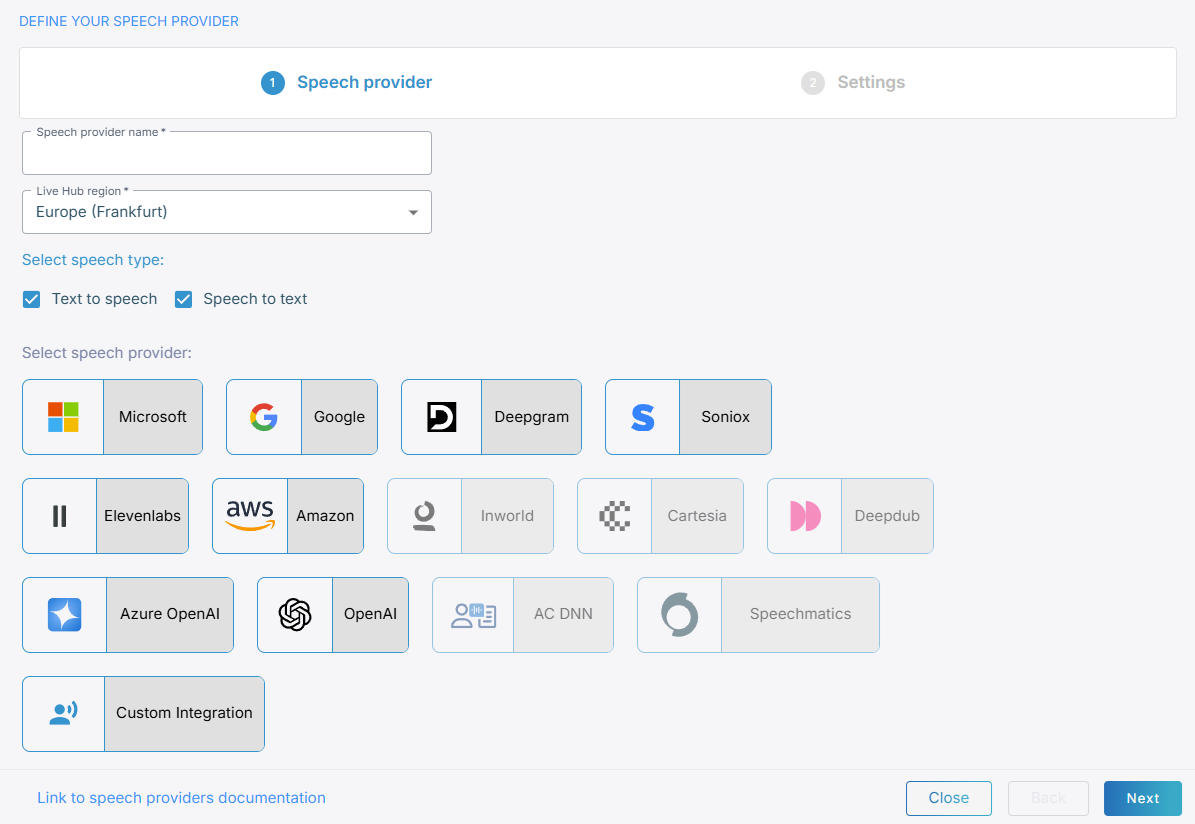
The steps are the same whichever vendor you use: you name the provider, select the Live Hub region, and supply the vendor's own credentials.
To add a speech provider:
-
In the Navigation pane, select Speech providers.
-
Click Add new speech provider.
-
On the 'Define your speech provider' screen, in the 'Speech provider name' field, enter a name.
-
From the 'Live Hub region' drop-down list, select the region your Live Hub voice infrastructure runs in. See Global region support.
-
Select the speech type, select the vendor, and then complete the vendor's fields. Each vendor has its own page in this section.
-
Click Create.
An Essential account can hold up to 30 speech providers.
Vendors
Each vendor below has its own page, covering the fields you complete for it. Have the vendor's authentication credentials and endpoint URLs ready before you start.
| Vendor | Provides |
|---|---|
| Microsoft | Speech-to-text and text-to-speech |
| Speech-to-text and text-to-speech | |
| Amazon | Speech-to-text and text-to-speech |
| Deepgram | Speech-to-text and text-to-speech |
| ElevenLabs | Speech-to-text and text-to-speech |
| Inworld | Text-to-speech |
| Cartesia | Text-to-speech |
| Deepdub | Text-to-speech |
| Soniox | Speech-to-text and text-to-speech |
| Azure OpenAI | Speech-to-text and text-to-speech |
| OpenAI | Speech-to-text and text-to-speech |
| AC DNN | Speech-to-text |
| Speechmatics | Speech-to-text |
| Custom integration | Whatever your service provides |
Alongside the fields for adding the provider, each page covers that vendor's advanced
configuration parameters: what they are, where the vendor documents them, and which ones
Live Hub supports. They are set on a bot connection's Advanced tab, under
sttPassthruConfig and ttsPassthruConfig, and work the same whether the service is
pre-deployed or you added it yourself.
Some vendors take the same parameters on the provider itself, in an 'STT configuration' or 'TTS configuration' field, where they apply to every bot connection using that provider. A bot connection's settings win over the provider's, so you can set a default for the account and depart from it on one bot. A few parameters are accepted on the provider but ignored on a bot connection; each vendor's page says which.
Edit or delete a provider
In the Navigation pane, select Speech providers. On the provider's card, do one of the following:
- Edit: Change the provider settings, and then click Update.
- Remove: Delete the provider, and then click Delete to confirm.